heyski.io / tutorials / voice coding
Tutorial 01 · Start talking

Voice coding: talk to your coding agent

From opening the widget to a spoken conversation with Claude Code, Cursor, Codex — any agent — in about a minute. Everything runs on your machine.

1:22 · with sound · everything shown runs on-device
The written version

Five steps, no typing.

STEP 01

Open SKI

Launch SKI and a small widget appears on your desktop — that's the whole interface. On Mac it can dock into the notch or float as a pill; on Windows it floats as a pill wherever you park it.
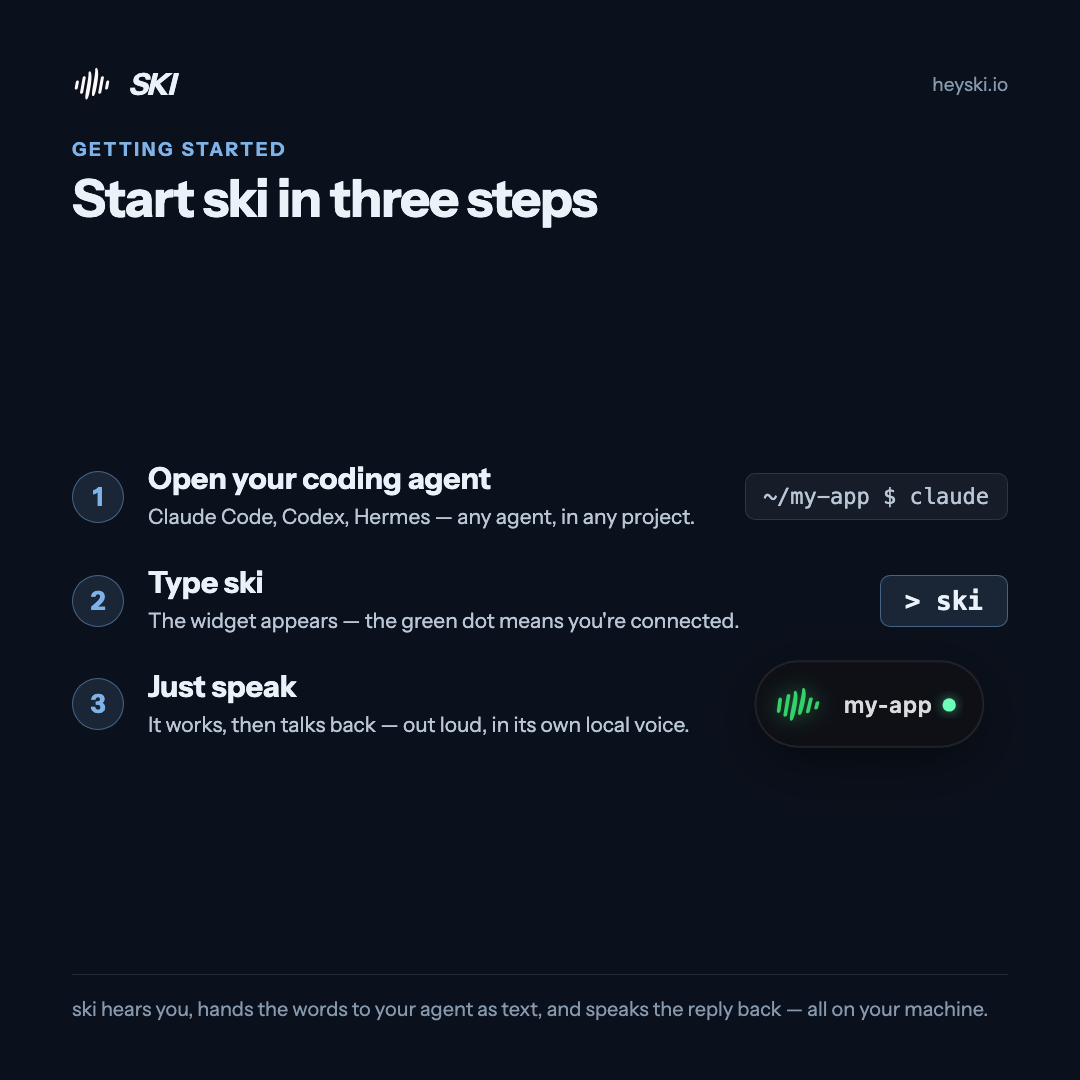
Infographic: start SKI in three steps — open your coding agent, type ski, then just speak
The whole flow on one card
STEP 02

Type ski in your agent

In your coding agent — Claude Code, Codex, any of them — type ski. That connects the session to the widget. When the dot turns green, you're connected: your agent can now hear you and speak back.

STEP 03

Connect as many projects as you like

It's not just one project. Connect several at once — even from different agents — and jump between them. Click the project name on the widget to switch; each project answers in its own voice, so you always know who's talking.

STEP 04

Just speak

Say what you need out loud. Your words land in the agent as text and it gets to work — reading files, writing code, running tests. And when it's done, it talks back, out loud, in a natural voice generated on your machine. You talk. It works. It answers.

STEP 05

The quick controls

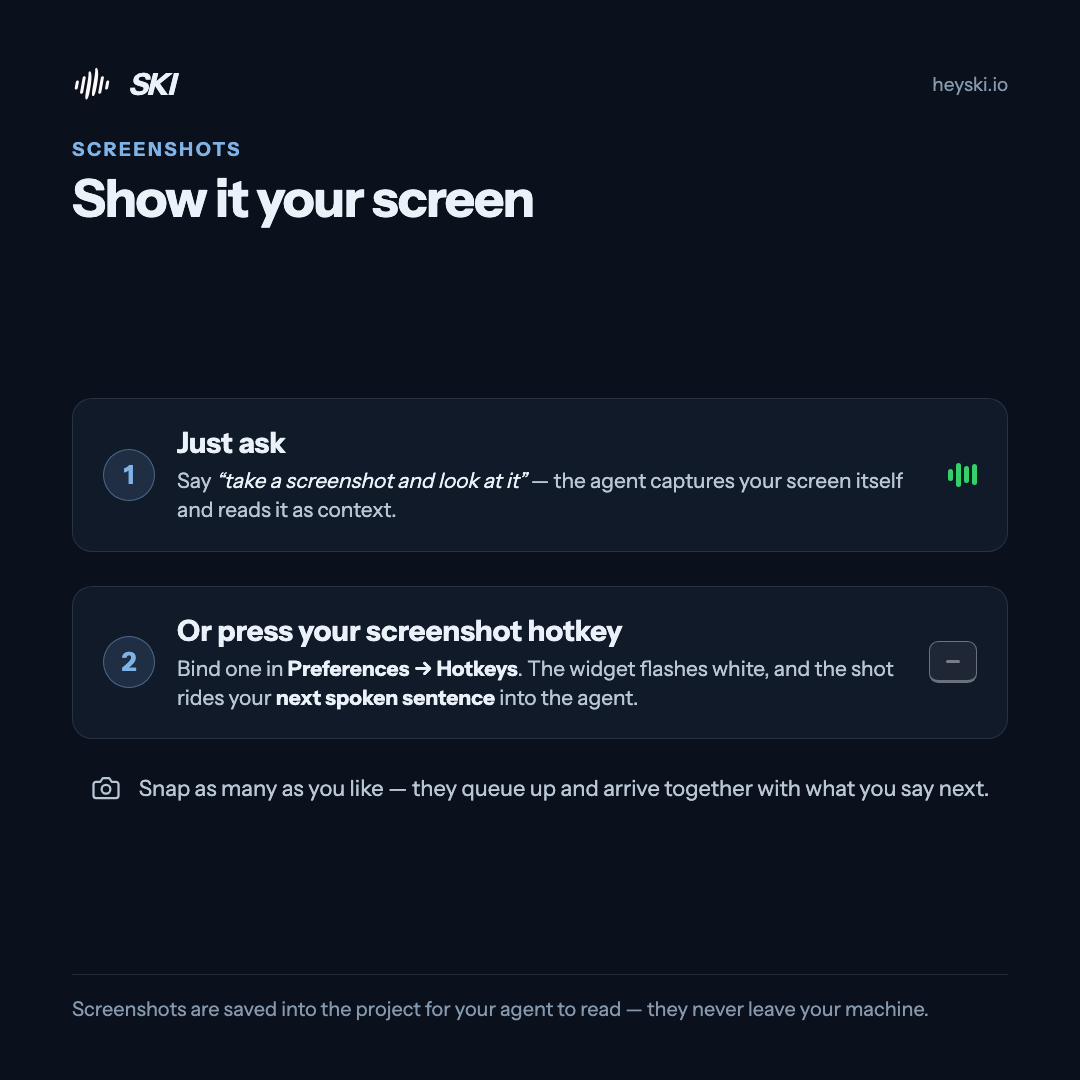
Hover the widget for the controls that matter mid-flow: mute (mic off at the source), silent mode (replies as text only), and screenshots that ride along with your next spoken sentence. Every one of them can be a hotkey — yours to choose, in Preferences → Hotkeys.
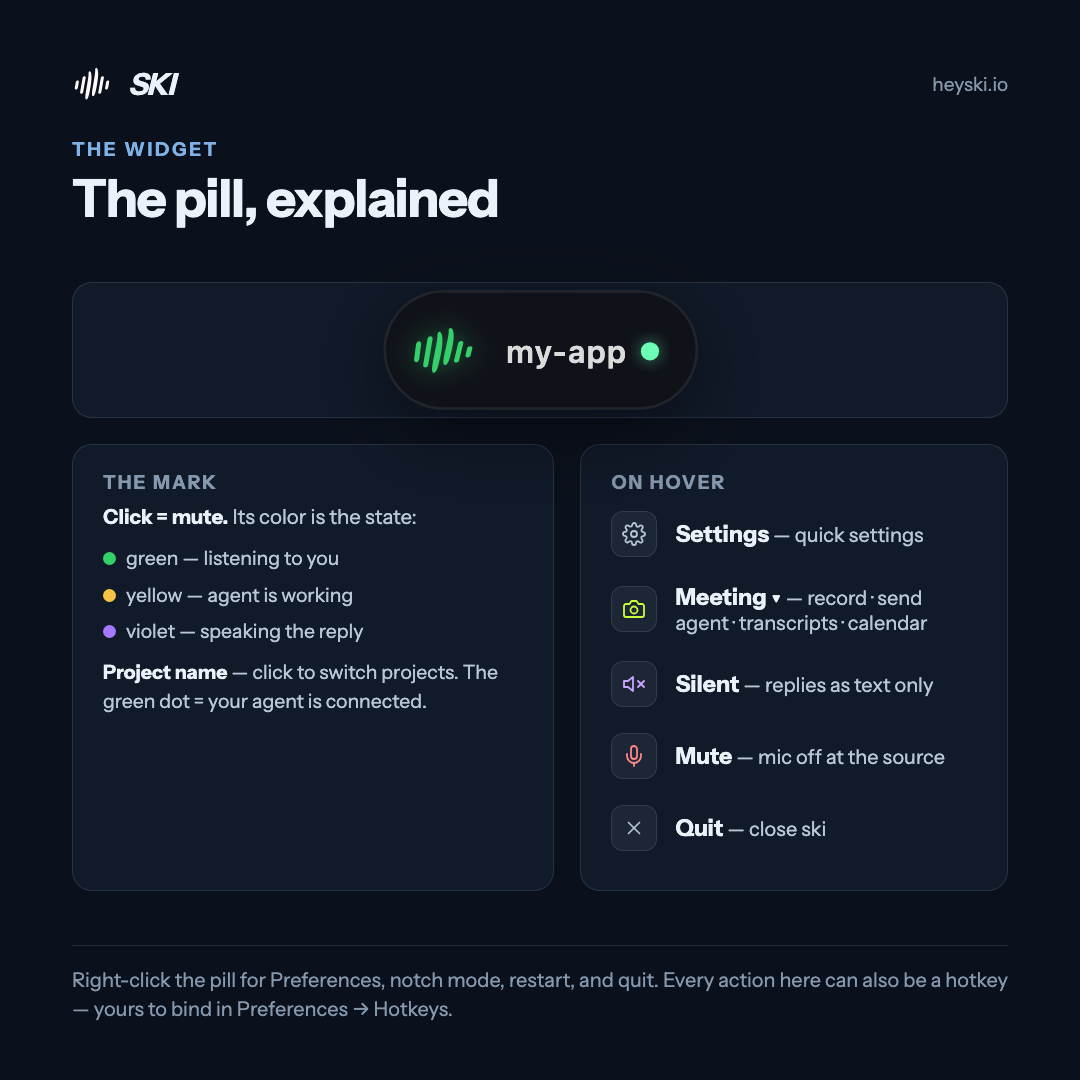
Infographic: the SKI pill explained — mark color shows state, hover reveals settings, meeting menu, silent, mute and quit
The widget, explained
Infographic: show SKI your screen — ask the agent to take a screenshot, or press your own screenshot hotkey
Screenshots ride your next sentence
Voice coding · FAQ

Good questions.

Which coding agents can I talk to?

Claude Code, Codex, Cursor, Gemini CLI, Windsurf, and OpenClaw — SKI installs a small skill for each with one click, and you can connect several projects from different agents at the same time.

Does SKI type into my editor or terminal?

No. SKI talks to your agent through a skill and plain files inside your own project — nothing is injected into windows or keystrokes. Your agent reads what you said and replies through the same files, which is why it works with any terminal, editor, or IDE.

Can I review what I said before it's sent?

Yes — turn on approve-before-send and every transcript lands in an editable bubble first. Nothing reaches the agent until you confirm it.

Is there push-to-talk?

On Mac, yes — opt in to the globe/fn key: tap it to mute or unmute, or hold it to talk. You can also bind your own hotkeys for mute, silent mode, and screenshots in Preferences → Hotkeys.

Does voice coding need an internet connection?

No. Speech recognition and the voice that answers both run on your own machine — the whole loop works offline, and nothing you say is uploaded.

Keep going

More tutorials.

Try it out loud.

Free for life. Register once — no card — and the whole voice loop is yours, on-device, forever.

macOS 14.4+ · Apple Silicon  ·  Windows 11 & 10 · x64