Voice coding · Cursor

Voice coding in Cursor.

Speak to Cursor's agent without leaving the editor — SKI turns your words into requests and Cursor's replies into a natural spoken voice, all on your own machine.

Why voice, why Cursor

Stay in the editor. Talk past it.

Cursor puts the agent inside your editor — which is exactly where your hands are busiest. Voice coding lets you keep them there: you speak the request while your cursor stays on the code, Cursor's agent does the work, and the answer comes back out loud, so you don't have to break focus to read a side panel.

SKI runs beside Cursor, not inside it. Your speech becomes text on your machine and reaches the agent exactly like a typed message — through a small skill and plain files in the project, never injected keystrokes. Replies are spoken by a neural voice generated locally, with the transcript in the pill or notch if you'd rather glance than listen.

The written version

Five steps to a talking Cursor.

STEP 01

Install SKI

One installer — DMG on Mac, EXE on Windows. The widget appears on your desktop — notch or floating pill. That's the whole interface; Cursor stays exactly as it is.

STEP 02

Connect Cursor — one click

SKI installs a small skill for Cursor at the project level — one click. Each project you want to talk to gets connected once.

STEP 03

Type ski in Cursor's agent

In the project's agent chat, type ski. When the widget's dot turns green, you're connected — the project can hear you and speak back.
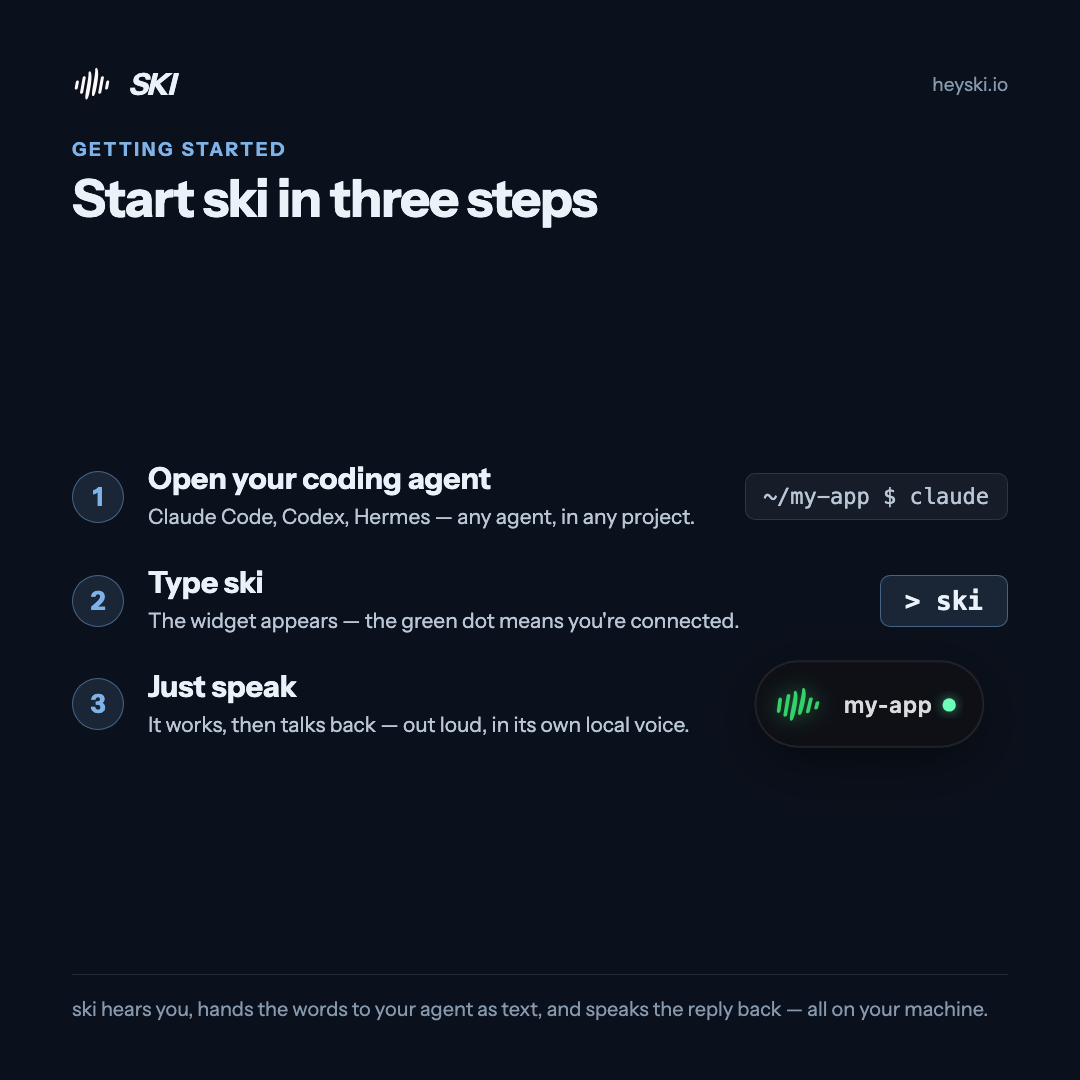
Infographic: start SKI in three steps — open your coding agent, type ski, then just speak
The whole flow on one card
STEP 04

Just speak

Say what you need — "add a loading state to the table," "find where this error comes from." Cursor's agent reads the files, makes the edits, runs what it needs to — then answers out loud. Want to check before anything is sent? Turn on approve-before-send and every transcript waits for your ✓.

STEP 05

Mix and multiply

Connect several projects — Cursor on one, Claude Code or Codex on another — and switch from the widget; each project answers in its own voice. Mute, silent mode, and screenshots are one hover (or one hotkey) away.

Cursor · FAQ

Good questions.

How does SKI connect to Cursor?

One click in SKI installs a small skill for the project, then you type ski in Cursor's agent to connect it. When the widget's dot turns green, the session is live — no keystroke injection, no window automation.

Does SKI type into the Cursor window?

No. SKI and Cursor's agent exchange messages through plain files inside your own project — nothing is injected into the editor, which is also why nothing breaks when Cursor updates.

Can I mix Cursor with other agents?

Yes — connect Cursor on one project and Claude Code, Codex, or any supported agent on another, all at the same time. Each project answers in its own voice, and you switch from the widget.

Do I need Cursor's paid plan?

SKI is free for life. Cursor is its own product with its own plans — SKI adds voice to whatever Cursor setup you already run.

Does voice coding in Cursor work offline?

SKI's side does — listening, understanding, and speaking all run on your machine, and your voice is never uploaded. Cursor's agent itself follows whatever connectivity it normally needs.

Keep going

More voice coding.

Give Cursor a voice.

Free for life. Register once — no card — and the whole spoken loop in Cursor is yours, on-device, forever.

macOS 14.4+ · Apple Silicon  ·  Windows 11 & 10 · x64